17 JULY 2019

c#basics WrapPanel Grid Media click-event ScrollViewer ComboBox

tree

We learned about two new types of panels in WPF: WrapPanel and Gird. The WrapPanel will position each of its child controls next to the other, horizontally (default) or vertically, until there is no more room, where it will wrap to the next line and then continue. Use it when you want a vertical or horizontal list controls that automatically wraps when there’s no more room.  The Grid can contain multiple rows and columns. You define a height for each of the rows and a width for each of the columns, in either an absolute amount of pixels, in a percentage of the available space or as auto, where the row or column will automatically adjust its size depending on the content. Use the Grid when you need multiple columns and often in combination with the other panels. We investigated more WPF controls: ScrollViewer, ComboBox and Media (image, video). we created a button click Event in the XAML code and attached it to a function. we saw that WPF controls have a property window (when pressing F4) which displays their properties and events. modifying properties in the property window will modify the XAML (and vice versa). we studied how to Bind data to a ComboBox control. in order to do so we created a List<Person> and assigned the ItemsSource of the ComboBox to this list (in the C# code behind). in the XAML, we added a ComboBox control which contain a TextBlock with Binding data to the Person.FirstName and a TextBlock with Binding data to the Person.LastName, that’s it!

More topics covered:

  • Grid: ColumnDefinition RowDefinition
  • ColumnSpan
  • WPF namespace, xmlns:x
  • MouseDown Event
  • DataTemplate
  • { Binding Property-Name }
  • Adding media to WPF window
  • Adding media to solution explorer
  • Modifying media build action
  • Project Resource
  • Embedded Resource

Links:


14 JULY 2019

c#basics StackPanel DockPanel Binding

fonter

We learned about two types of panels in WPF: StackPanel  and DockPanel. The StackPanel will position each of its child controls next to the other, horizontally (default) or vertically, until there is no more room and then it simply expands itself, if possible. the child controls are stretched to take up the full width or height (based on the largest item). Use the StackPanel when you want a list of controls that takes up all the available room, without wrapping. The DockPanel allows you to dock the child controls to the top, bottom, left or right. By default, the last control, if not given a specific dock position, will fill the remaining space. Use the DockPanel whenever you need to dock one or several controls to one of the side. We explored a font-viewer application which allows the user to select a specific font from a list and modify the text accordingly. the text could be modified by the user and is automatically duplicated among all other text blocks. the entire application is written without a single line of code! only in XAML declarations! we saw how the { } brackets are used to compute a value in XAML – for example to read a list of fonts, set a font value , set a text value etc. we also saw some more cool design features such as : margin, padding, border, background colors and more

More topics covered:

  • What is XML ?
  • Create multiple XAML windows inside the application
  • Binding data to Control
  • Margin orientation – single value, two values, etc.
  • Border control
  • Nesting panels – panel inside a panel
  • ListBox ItemsSource, SelectedItem
  • Path attribute
  • x: [name-of-property]
  • Adding ToolTip 
  • TextBlock is more lightweight control for displaying text
  • TextBox is used when you require user input or edit existing text
  • TextWrapping attribute
  • MinLines attribute

Links:

panels2

10 JULY 2019

c#basics WPF-introduction XAML

wpf.PNG

WPF introduction

More topics covered:

Links:

07 JULY 2019

c#basics async-await ui-thread begin-invoke ui-freeze

ui.PNG

We learned the Async Await pattern. The await keyword provides a non-blocking way to start a task, then continue execution when that task completes. whenever we want to use the await– we must add async modifier to the method signature. the async await pattern should be used when we are running operations such as: file access (read/ write), web operation, etc. the advantage of the async await is that we do not consume a thread to wait for the operation to complete. also need to take into consideration that the operations after the await are running in a background thread (so it is not guarantee to be completed). the next topic was UI thread in WinForm application. since blocking the UI thread causes the entire window to “freeze” we should always avoid making long operations on the UI thread. one solution could be to use the async await pattern. another solution could be to run long operation on a separate thread (Task) and call the UI thread using the BeginInvoke method on the specific control we want to redraw. why should we use the BeginInvoke? answer: since redrawing a component not from the UI thread causes the following exception: “…accessed from a thread other than the thread it was created on”

More topics covered:

  • ILSpy extraction tool
  • Async builds a state machine around the function
  • Async key word does not break interface
  • Async in signature return Task – automatically
  • BeginInvoke on the main form
  • Changing control color does not require the UI thread
  • After the await the same thread may continue running the operations if it is available. if not, a different thread will continue

Links:

23 JUN 2019

c#basics delegate begin-invoke end-invoke callback invocation-list

apm.gif

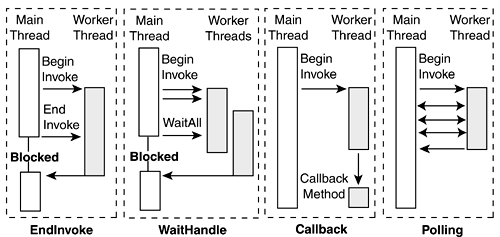
We saw the Asynchronous Programming Model (APM) which fires the method(s) inside a delegate using BeginInvoke and EndInvoke. BeginInvoke executes a single method inside a delegate asynchronously. if we desire to retrieve the result of the delegate (whenever the delegate points to a function which returns a value) we would use the EndInvoke. we could also use the EndInvoke in order to wait for the delegate function to be completed (like wait, or join). in order to use the EndInvoke mechanism we require the IAsyncResult. the IAsyncResut is an object which looks a bit like the Task object. it can help us to check whether the delegate has completed or not. whenever we call the EndInvoke we pass the IAsyncResult as a parameter. Another strategy could be to assign a CallBackMethod which will be executed after the BeginInvoke delegate has been completed (without blocking our code). the CallBackMethod  we write accepts the IAsyncResult as a parameter (which is automatically sent be the .NET framework [dependency injection]) so we could run the EndInvoke inside the CallBackMethod, or just check the state of the delegate. we saw that if we want to run all of the methods inside a delegate asynchronously we could write a foreach loop which iterates over the delegate methods using the GetInvocationList and fires them using the BeginInvoke. we also saw that we could pass any type of argument to the BeginInvoke method which will be passed to the IAsyncResult.AsyncState property

More topics covered:

  • Delegate class. the base of MultiCastDelegate class
  • DynamicInvoke
  • Task implements IAsyncResult 
  • BeginInvoke runs on a background thread
  • BeginInvoke could be executed only on a single delegate method
  • EndInvoke could be executed on a specific delegate only once
  • @object

Links:

19 JUN 2019

c#basics tasks continue-with cancellation-token aggregation-exception

1_tasks

We saw the Task.Run (.NET 4.5) and the Task.Factory.StartNew which are a short and simple way to create and start a task (the difference between them is that Task.Factory.StartNew supports LongRunning operations [non threadpool threads]).we talked about Task.ContinueWith. the Continue-with creates a continuation task and executes it after the first task is completed. The continuation task is executed or not based on a set of specified conditions provided by the  TaskContinuationOptions enum, for example: continue to the next task only if the previous task completed successfully, etc. tasks have a built-in mechanism for cancellation called cancellation token (part of the CancellationTokenSource). the cancellation token is a struct which enables cooperative cancellation between tasks. When the owning object calls CancellationTokenSource.Cancel, the IsCancellationRequested property is set to true. this means that in the tasks that we write we should check the cancellation token state.  if the state is cancelled- we could decide how to proceed, for example: quit the method, ignore, throw OperationCancelledException (using built-in ThrowIfCancellationRequested method) , etc. we saw that whenever an exception occur inside a task- it is nested inside an AggregationException. since tasks are running on a background threads- the exception thrown inside a tasks does not “crash” the program. however, if we try to Wait for a faulted task or retrieve the Result from a faulted task: AggregationException will be thrown (which could crash our program, if not handled). so the best approach will be to try-catch the Wait or to check whether the task is faulted or not, then if it is faulted- use the Task.Exception.Handle method

More topics covered:

  • Task.ContinueWith should keep the same return value
  • Task.ContinueWith creates a parent-child tasks
  • In the Task.ContinueWithThe child task will be executed even if the parent task throws an exception
  • ThrowIfCancellationRequested throws an exception only if the token was cancelled
  • Dependency injection

Links:

16 JUN 2019

c#basics flight-center wait-handle auto-reset-event manual-reset-event task

wait1.png

We talked about WaitHandle class in .NET which is used to synchronize between asynchronous work.  Two important classes which derive from WaitHandle are: Manual Rest Event and Auto Rest Event. these classes are used in order to allow one thread to wait in a specific location in the code (WaitOne) until  a different thread completes his work (Signal). it’s quite similar to Wait and Pulse (or PulseAll) but the difference is that you do not need a locking object and you don’t need a critical section. you simply wait-one and signal without any constrains. we made an example in which there are threads which should add drawing to a web page, but they all should wait for the page to be loaded first, before they could start drawing. therefor all of these threads will be in a WaitOne state- till the loading page thread finished and call the Signal. The difference between manual reset event and auto reset event is that in manual reset event- after the signal has occurred- all the threads can pass the WaitOne “gate” (even threads reaching the WaitOne in a later point in time) in oppose to auto reset event, in which only one thread can pass the WaitOne “gate”. it means that we have to call the Signal each time we desire to allow one waiting thread to pass the WaitOne “gate” (similar to Wait-Pulse)

tasks.jpg

We explored the Task type. what is a task?  answer: “A task is an object that represents some work that should be done. The task can tell you if the work is completed and if the operation returns a result, the task gives you the result. Tasks class also let you create threads and run them asynchronously (by default uses the ThreadPool threads)”. we saw how to create tasks, start task, wait for task, retrieve task result, wait for all-tasks, and wait for any task (in a list of tasks)

More topics covered:

  • WaitOne( millisecond)  will proceed after the time limit, even if the “gate” is closed!
  • ManualRestEvent can be set to Signaled in the ctor
  • For non-threadpool use: TaskCreationOption . LongRunning
  • Task Parallel Library (TPL) introduction
  • Tasks uses background thread
  • Cancellation token introduction
  • Task.RunSynchronously 
  • Task.Result
  • Project start-up

Links:

12 JUN 2019

c#basics flight-center marker-interface facade

flights

We talked about the Flight Center Project LTD

More topics covered:

  • Marker interface (empty interface)
  • Facade design pattern
  • Class Library (.NET Framework) project type
  • Adding reference to another project

Links:

05 JUN 2019

c#basics monitor-wait-pulse-pulseall design-patterns singleton

pulse

We saw how to Start( ) a thread and then Suspend( ) it. Why? Answer: so later on we can (in any point of time in the future) Resume this ready-to-go- thread without “paying” the initialization time. We saw the Pulse/Wait synchronization methodology.  How does it work? Answer: we can set one (or more) threads in a Wait( ) state (=blocking state) which will make the thread wait until a different thread calls the Pulse( ) method and releases the “waiting” thread. Pulse( ) will free only one Waiting thread. PulseAll( ) will free all of the Waiting threads. keep in mind that Wait/Pulse/PulseAll could only be called from a critical section in which is locked by the same key. In our example: we had a mobile technician department which are fixing phones, and a customer-service department which should call each customer after his phone has been fixed. Therefor, we had a thread in a Wait state (the customer-service), and a different thread for the technician which fixes the phone. after the technician completed to fix the phone- he Pulses the customer-service thread (which was in Wait state) – to release the thread and make him “call the customer”.


dp

What are design patterns? Answer: a software design pattern is a general, reusable solution to a commonly occurring problem within a given context in software design. It is a description or template for how to solve a problem that can be used in many different situations. Design patterns are formalized best practices that the programmer can use to solve common problems when designing an application or system. In the last part of the lesson we implemented the Singleton design pattern.

More topics covered:

  • Firing a thread in a Timer
  • Gang of Four

Links:

02 JUN 2019

c#basics thread-states ThreadPool Monitor lock concurrent-collections

threadstates.PNG

We encountered the dilemma of using multi-threaded solution vs. single threaded solution: are we reducing the execution time or not? … to answer this question we should test how long does it take us to spawn new threads? and if we sum up all of the initialization threads time and the execution time – does it take longer than a single thread? if so- we should use the multi-threaded solution, otherwise we should use a single threaded solution. We learned about the ThreadPool collection and saw that “borrowing” a thread from the ThreadPool saves us a lot of time! since we do not need to initialize the thread (it is automatically ready-to-go). however, we should not use ThreadPool threads for long operations, and also beware not to exhaust this resource.
We saw that multi threaded programming might cause an exception when few threads try to add/remove items from a List. why? because if one thread is trying to add an item to the list, while another thread is trying to remove an item from the list – it crashes the program. What could be the solution?  Answer: (1) use .NET Concurrent collections which are Thread-Safe (meaning that they support multi-thread access). these collections limits the access to a resource for only one thread at a time. it’s an easy-to-use solution but the down side is that we always pay the cost of longer access time (because of the locking mechanism) (2) use Monitor.Enter and Monitor.Exit: these commands block a certain code-block (critical section) and do not allow more than one thread to enter this code-block at the same time. we saw that if we forget to call Monitor.Exit then the lock is not released and a deadlock scenario may occur (causing the thread to get “stuck”). Finally we saw that instead of using Monitor.Enter and Monitor.Exit– we can simply use lock (key) { … }, which “behind the scene” calls the Monitor.Enter and Monitor.Exit (using a try-finally block). still there are some differences between Monitor and lock (i.e. Monitor.TryEnter)

More topics covered:

  • Thread states flow
  • Stopwatch
  • SyncRoot
  • Every object can be used as a key
  • We need different locks for different resources
  • Beware of using instance lock for static resource
  • System.Collections.Concurrent namespace
  • System.Collections.Concurrent.ConcurrentDictionary
  • ArrayList.Synchronized(new List<int>());
  • ThreadPool.QueueUserWorkItem

Links:

Design a site like this with WordPress.com
Get started